Browse and Edit Project Files in OpenCode Mobile
Use Projects → Files to inspect the selected project, preview media, move files around, or make a small, deliberate text correction without opening a desktop editor.
Find and read a file
Section titled “Find and read a file”- Select the correct project in Projects.
- Open the project’s Files surface.
- Search by path or filename, or browse folders.
- Tap a result to load its current server content.
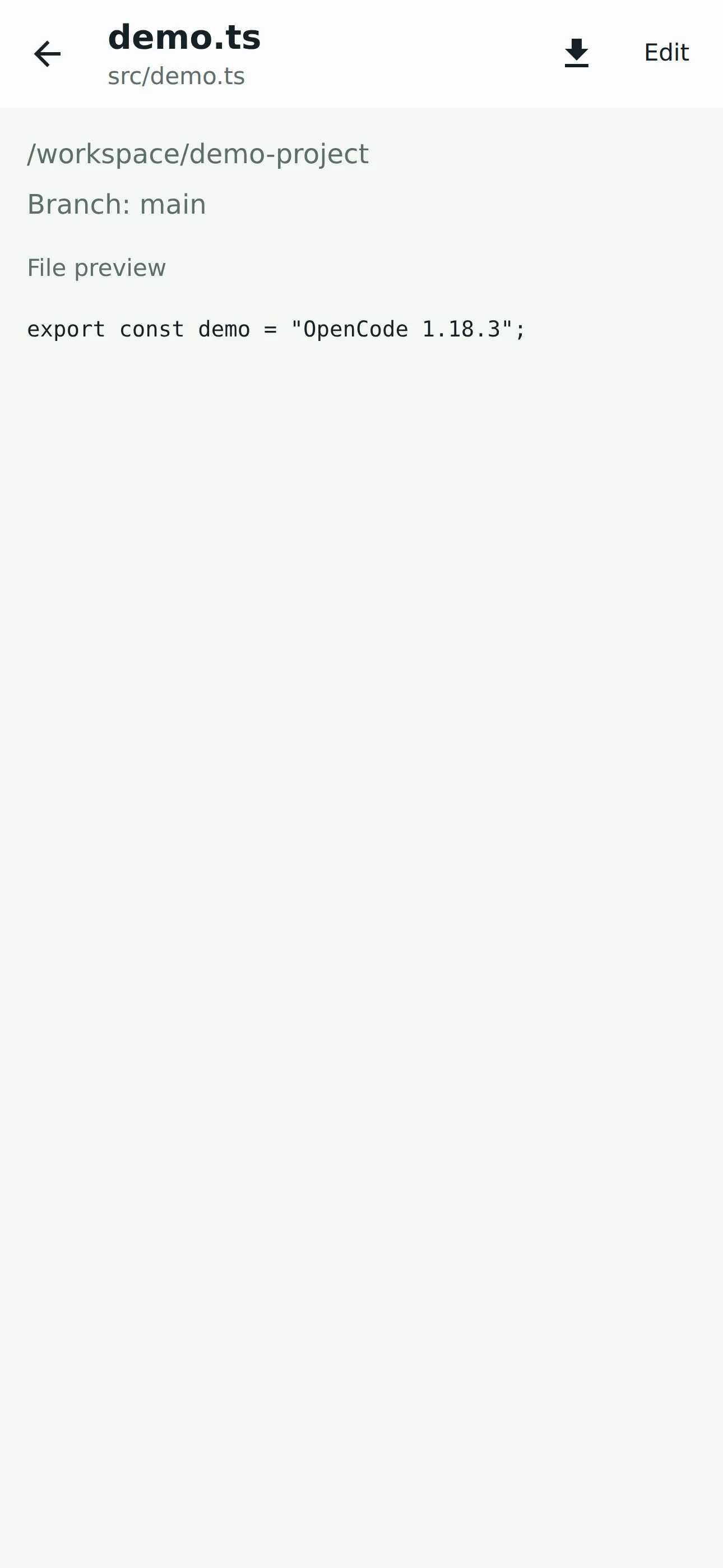
The header shows the selected project, worktree when applicable, and the current VCS branch when the server supplies it. Changed files are marked as added, modified, or deleted; deleted file content may be unavailable.
Android Back walks up one folder at a time. At the project root it performs normal navigation. An active search is dismissed before folder navigation.
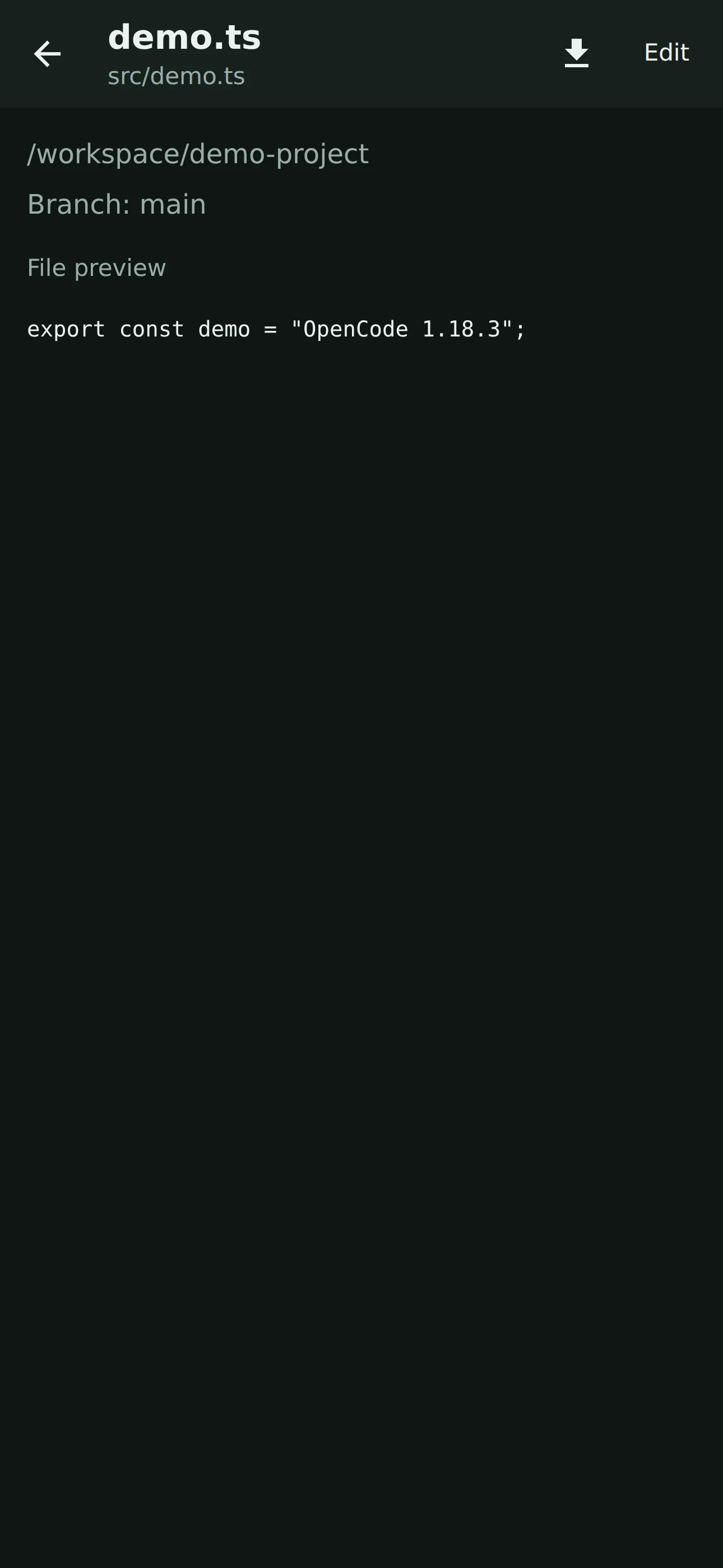
The file view follows the website’s current color theme.
Preview media and download files
Section titled “Preview media and download files”On OpenCode 2:
- Raster images, audio, and video open inline.
- Images open in a full-screen viewer with pinch zoom, panning, double-tap zoom, and a save/share action.
- Any readable file can be downloaded. Native builds use the OS save/share sheet; web uses a browser download.
- Inline media is bounded at 25 MB; larger files fall back to a streaming download.
- PDFs, archives, installers, and other binaries show a download card.
OpenCode 1.x does not return binary file bytes, so binary files show an unavailable message while text preview, editing, and download continue to work.
Move, copy, rename, or delete
Section titled “Move, copy, rename, or delete”On OpenCode 2, file and folder rows expose actions from a swipe-left or long-press menu:
- Copy path writes the absolute server path to the device clipboard.
- Rename opens a focused Save/Cancel sheet. A single non-empty basename is required, and an existing name is never overwritten.
- Copy and Cut stage one entry per connection. A strip below the breadcrumbs shows the staged source with Paste and Clear.
- Paste targets the browsed folder. It can cross projects or worktrees on the same connection.
- Replacing a file requires confirmation. Folder collisions and type mismatches are rejected.
- Cut removes the source only after a verified paste. Copy stays reusable.
These mutations require OpenCode 2 and the server shell utilities the app uses for file operations. If an operation fails, the input and clipboard state are preserved. If the result is uncertain, inspect both paths before retrying.
Make a focused text edit
Section titled “Make a focused text edit”- Open a supported text file.
- Tap Edit.
- Change only the necessary content.
- Tap Save patch.
- Review the resulting VCS change before continuing.
Before saving, the app re-reads the server file and compares it with the content you opened. If the file changed in the meantime, the save is rejected instead of overwriting newer content. Reopen the file, incorporate the current version, and try again.
OpenCode 2 uses the native file.write API for saving. The same read-before-write check applies, but V2 has no conditional-write API, so a concurrent edit that lands between the final read and the write cannot be fully prevented. Treat the check as a safety net, not a lock. OpenCode 1.x uses its compatible save path.
Only non-base64 text files are editable. Binary content is read-only.
Choose the right tool
Section titled “Choose the right tool”Mobile file editing works well for a typo, configuration value, or small documentation adjustment. For multi-file refactors, use Chat to describe the goal and review the diff, or return to a desktop editor.
If editing or file actions are unavailable, the connected server did not report the required capability, or the connection is OpenCode 1.x.
Next: Review approvals and changes, use worktrees, or run a focused terminal command.