OpenCode Mobile Settings and Customization
OpenCode Mobile groups configuration into three areas: App preferences, Connections, and the Selected server. This page is the map; follow the focused guides for details.
Open Settings
Section titled “Open Settings”Open the Settings tab. The home screen is searchable, and every category opens in a sheet without changing the active chat.
- Search settings matches localized labels, descriptions, and category keywords.
- Selecting a result opens the category and reveals the control, including a collapsed group.
- Search does not index current values, credentials, or content returned by the server.
- Closing a result keeps the query; clear it to restore the grouped list.
The settings map follows the website’s current color theme.
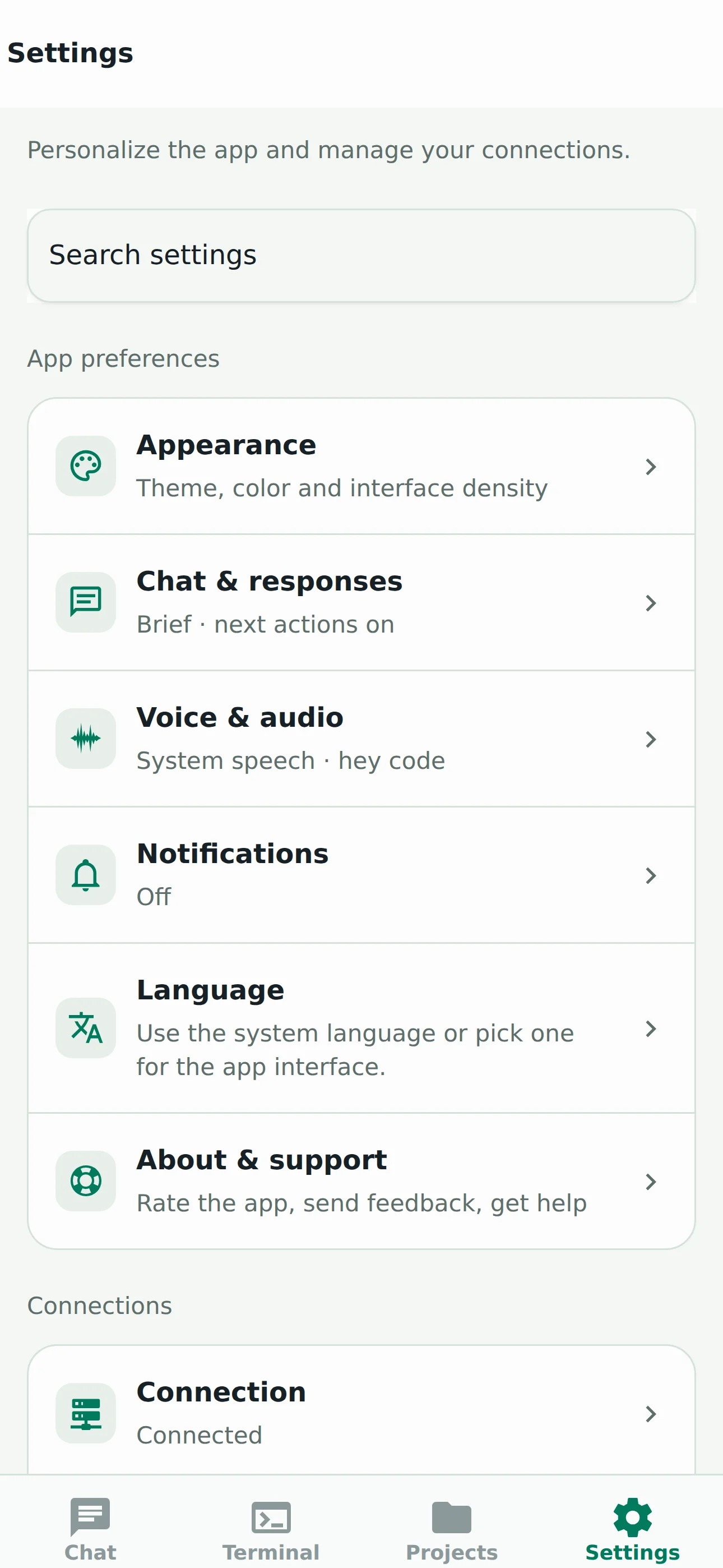
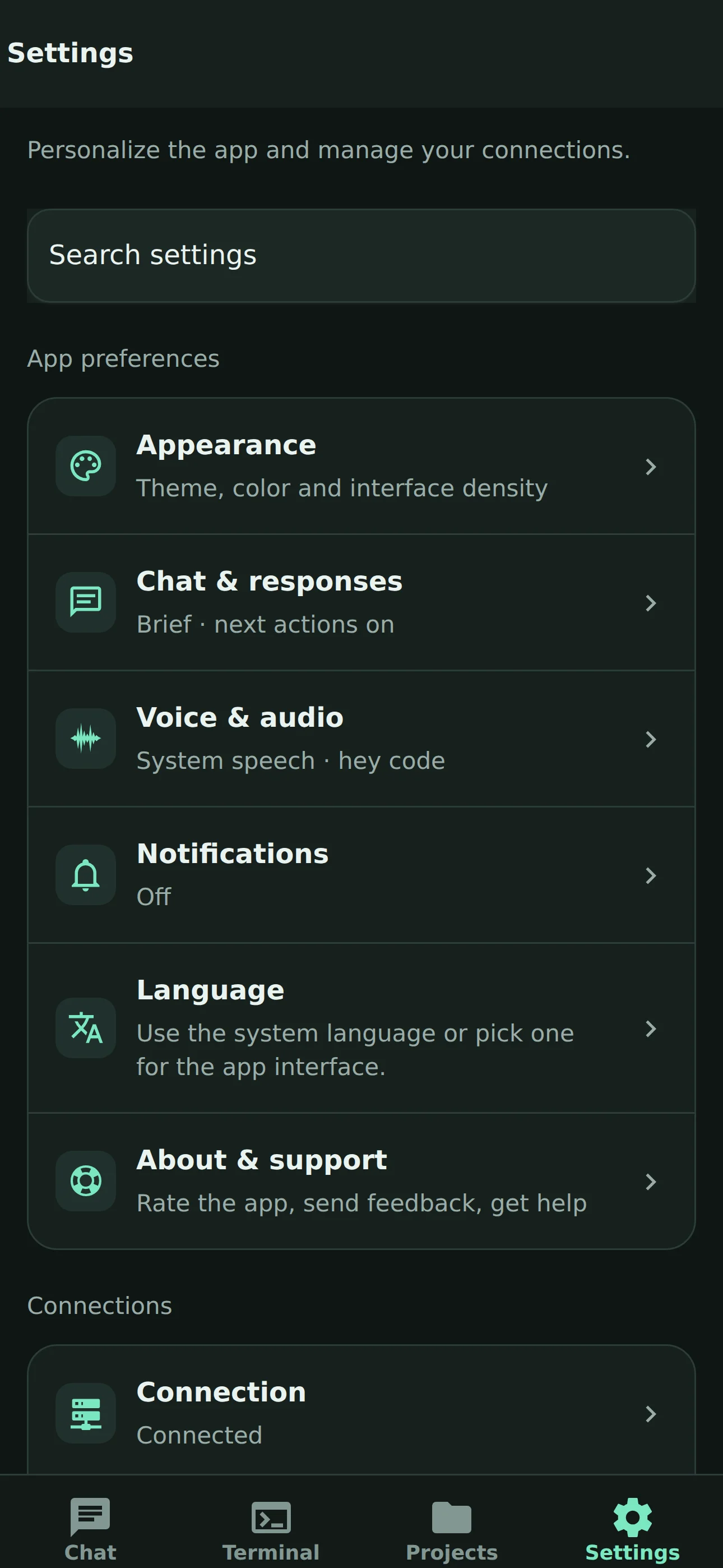
App preferences
Section titled “App preferences”Appearance
Section titled “Appearance”- Theme mode: follow the system, or lock the app to light or dark.
- Theme: choose Green, Blue, Red, Purple, Pink, or Gray. The accent changes surfaces, accents, chat bubbles, code blocks, and the terminal.
- Slim interface: reduce control sizes, padding, and header heights so more of the transcript or output fits on screen.
The app applies the theme immediately and remembers it across connections.
Chat & responses
Section titled “Chat & responses”- Messages sent while working on OpenCode 2: choose Steer to apply the next message at the next step, or Append to queue it for a later turn.
- Chat text size: adjust message text from small to large.
- Flat conversation: remove message bubbles for a denser transcript.
- Response scope: brief, balanced, or detailed answers.
- Simple next actions: ask the assistant to end with a short recommendation when there is a clear next move.
Response scope and next actions shape the generated prompt hints; they do not change the app layout.
Voice & audio
Section titled “Voice & audio”Voice has separate input and playback choices. See Voice for the full workflow.
- Choose System speech or On-device voice input.
- Set the wake phrase, confirmation, and interim-progress readback.
- Pick the speech locale, speech rate, and playback voice or on-device pack.
- Adjust the working sound.
- Run the voice check for microphone, recognition, and playback status.
Notifications
Section titled “Notifications”Use Notifications to request permission and review readiness. Android also links to notification, battery optimization, and battery-saver settings.
On Android, Show widget previews controls whether reply, request, and plan text appears in home-screen widget snapshots. See Notifications and Quick actions and widgets.
Language
Section titled “Language”Choose System default or an explicit interface language. Supported languages are English, Spanish, Hindi, German, French, Simplified Chinese, Portuguese, Japanese, Russian, Arabic, and Hebrew.
Arabic and Hebrew use right-to-left layout and navigation direction. The interface language also drives date, number, currency, and relative-time formatting.
About & support
Section titled “About & support”- Rate us on Play Store (Android), Give us feedback, and Open support page.
- Update checks on supported store builds: enable or disable checks, and choose When available, Daily, or Weekly.
- Reset onboarding reopens the setup assistant without clearing connections, providers, or preferences.
Update checks control the app’s own prompts and reminders, not the store’s automatic-update setting. See Releases and compatibility.
Connections
Section titled “Connections”Connection
Section titled “Connection”Add a manual server, scan a local QR code, switch saved profiles, or reconnect. Editing a profile does not reconnect automatically. See Add or switch connections.
Cloud Link
Section titled “Cloud Link”Cloud Link appears only when the app was installed from the App Store or Google Play. Use it to subscribe or restore access, pair a machine, manage machines, and edit exposed services. Direct APK and web builds do not show this section. See Cloud Link.
Selected server
Section titled “Selected server”The selected server is chosen once on Settings home. Its category sheets show the server and project context instead of repeating the selector.
AI & providers
Section titled “AI & providers”Add providers, manage multiple accounts, enable the models shown in Chat, and configure automatic model routing. Provider credentials belong to the connected OpenCode server, not the mobile app.
See Providers and models and Automatic model routing.
Extensions
Section titled “Extensions”On OpenCode 2, Extensions manages MCP servers, plugins, agents, skills, and slash commands for the current project or all projects. Plugin GUI panels are launched from the chat header.
See Manage extensions.
Approvals
Section titled “Approvals”On OpenCode 2, Approvals lists saved rules created by Always allow. Removing a rule makes the server ask again. The composer’s auto-approve control is also available only on OpenCode 2.
OpenCode 1.x does not expose the composer auto-approve control or saved approval rules.
Diagnostics
Section titled “Diagnostics”Diagnostics reports:
- OpenCode health and version;
- global realtime status and polling fallback;
- MCP counts when available;
- network type, online state, reconnect attempts, latency, and data use;
- the last JavaScript error recorded on the device;
- local log, span, and metric storage, recent events, and export;
- optional remote telemetry when an OTLP backend is configured.
On OpenCode 1.x, the Diagnostics sheet also has an MCP tab for runtime MCP actions. On OpenCode 2, manage MCP definitions under Extensions.
See MCP and diagnostics.
Server selection and disconnected servers
Section titled “Server selection and disconnected servers”- Only connected servers appear in server and project selectors.
- Disconnected, connecting, and unavailable profiles remain in Connection so you can reconnect them.
- Chat can fail over to another healthy server when the focused server drops. The failed server stays enabled but is omitted from selectors until it reconnects.